![iam small logo.png]](https://support.iamcompliant.com/hs-fs/hubfs/iam%20small%20logo.png?height=50&name=iam%20small%20logo.png)
Please note: you must be an account owner in order to be able to configure clusters within your iAM account.
Clusters are used to create groups of locations.
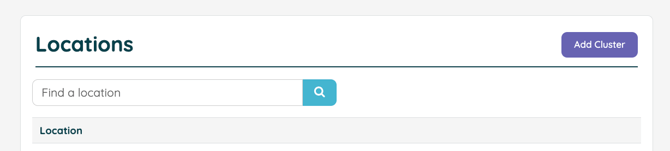
To create a Cluster, account owners can visit their Settings page > navigate to the Locations area > Click "Add Cluster" at the top:
Next, you'll be asked to provide a name for your cluster. A cluster can be an area of any size, or simply a name, whichever is most useful to your organisation.
You will then get the option to add one or more locations to the cluster:
You will then get the option to add one or more locations to the cluster:
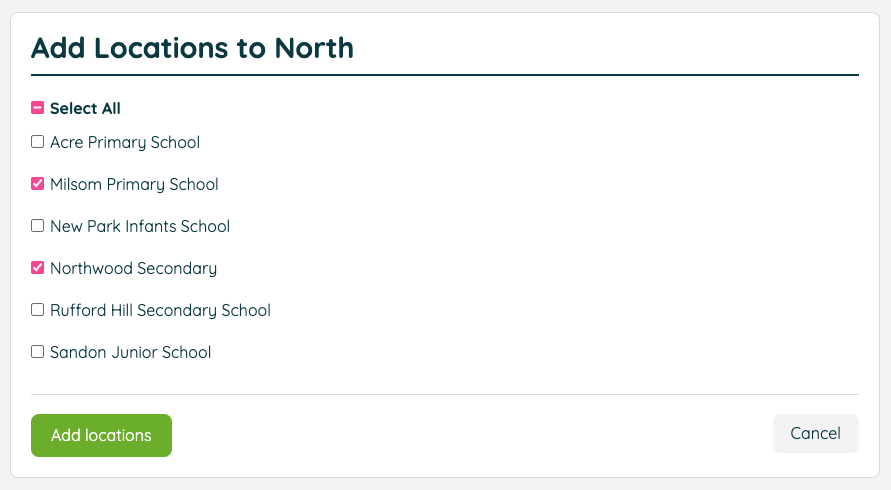
Select the locations you wish to add to your cluster, and confirm your choice with the green button. You'll be able to add or remove locations when needed, and you'll also be able to rename your cluster, or even to remove it.
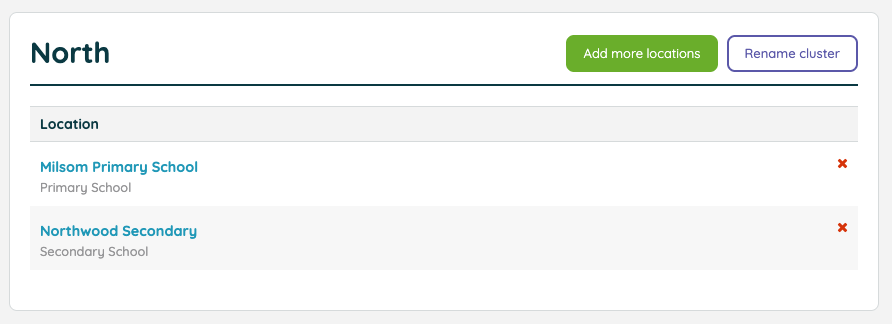
N.B. Removing a cluster will not delete any locations or their data, the locations within will simply revert to an unclustered, ungrouped state.
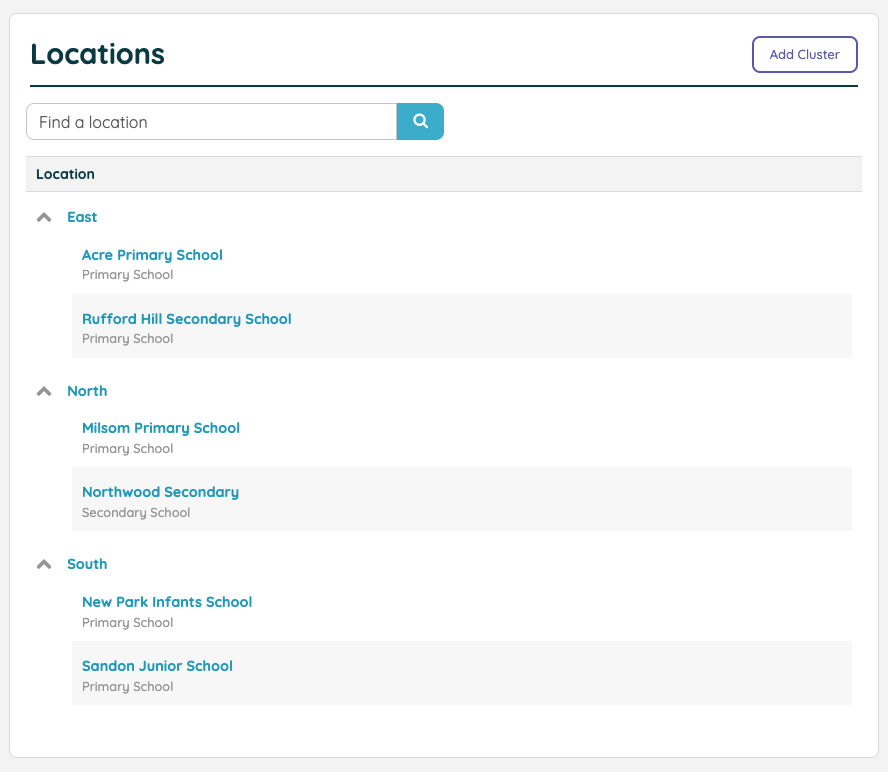
Head back to the main locations page to continue adding more clusters. You can define as many clusters as you need, but do bear in mind that each location can only belong to one cluster at a time.